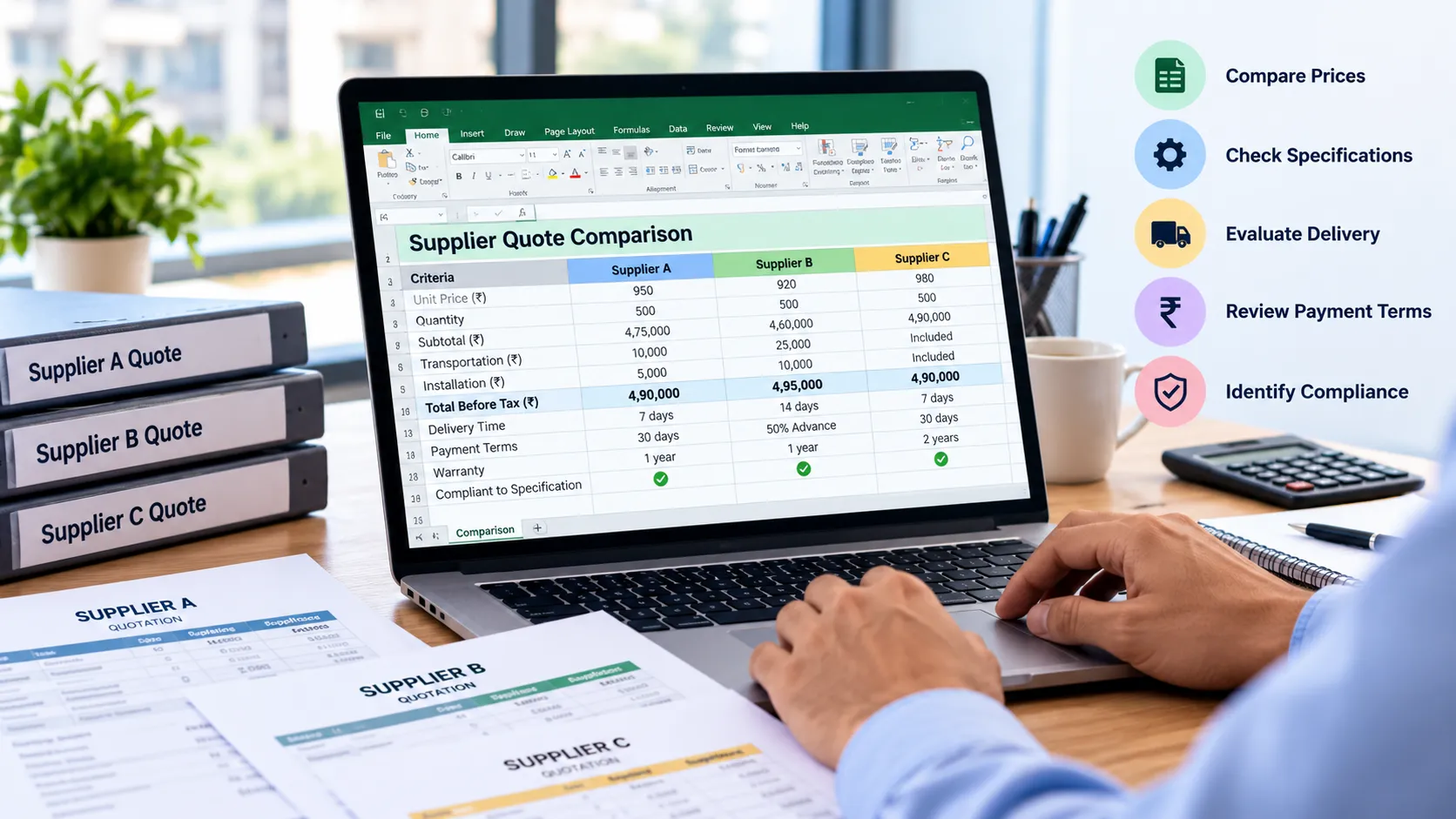
Supplier Quote Comparison in Excel: Template, Process and Limitations
Excel is often the first tool procurement teams use to compare supplier quotations. It is familiar, flexible, and usually available already. For a small purchase with two or three suppliers, a well-organized spreadsheet may be all you need.
The challenge begins when quotations arrive in different formats, suppliers use different units, freight and installation charges are listed separately, or the team has to compare dozens of line items. A spreadsheet can still help, but only if the data is structured carefully and someone checks the details behind the numbers.
This guide explains how to set up a supplier quote comparison in Excel, which columns and formulas to include, how to compare the results fairly, and when a spreadsheet may no longer be enough.
If you want to explore a way to speed up the document-review part of this process, see RFQ Quote Compare AI.
What is a supplier quote comparison sheet?
A supplier quote comparison sheet is a structured worksheet used to compare quotations received from multiple suppliers for the same requirement.
It brings key information into one place, including:
- Unit price and total quoted price
- Quantity and unit of measurement
- Freight, packaging, installation, and other charges
- Taxes and discounts
- Technical specifications and exclusions
- Delivery lead time
- Payment and warranty terms
- Any missing information that needs clarification
The purpose is not simply to identify the lowest number. It is to understand the comparable total cost, confirm that each supplier meets the requirement, and make a decision that can be explained later.
What to include in an Excel quote comparison template
You can create a separate worksheet for each RFQ, or use one workbook with a summary sheet and a detailed line-item sheet. For a straightforward purchase, the following structure is a useful starting point.
| Field | What to record |
|---|---|
| RFQ number | Unique reference for the request |
| Item or service | Description of the requested product or service |
| Required quantity | Quantity requested by the buying team |
| Unit of measurement | Each, kg, metre, hour, box, or another agreed unit |
| Supplier name | Name of the quoting supplier |
| Unit price | Price per unit quoted by the supplier |
| Discount | Discount amount or percentage, with the basis clearly recorded |
| Freight and handling | Delivery, freight, packaging, or handling charges |
| Other charges | Installation, tooling, testing, or other applicable costs |
| Taxes | Taxes, recorded consistently and according to the buying team’s comparison rules |
| Total comparable cost | Cost calculated using consistent assumptions |
| Delivery lead time | Supplier’s stated delivery timeline |
| Payment terms | Advance, credit period, milestone payments, or other terms |
| Specification status | Meets requirement, exception, or clarification needed |
| Notes and exclusions | Missing details, assumptions, or conditions |
| Evaluation status | Qualified, pending clarification, or not suitable |
Tip: Keep the supplier’s original quotation alongside the comparison sheet. The spreadsheet is a working summary, not a replacement for the source document.
How to compare supplier quotations in Excel
Step 1: Standardize the requirement
Before entering prices, make sure each supplier has quoted for the same requirement.
Check the item description, quantity, unit of measurement, grade, model, scope of work, delivery location, and required delivery date. A quote for a different specification or package size is not directly comparable just because its price is lower.
For example, one supplier may quote per box while another quotes per individual unit. Convert both to the same unit before comparing them, and document the conversion.
Step 2: Enter each supplier’s quote consistently
Create one column for each supplier in a simple comparison sheet, or use one row per supplier and item in a detailed sheet. The best layout depends on the number of suppliers and line items.
For a small RFQ, a summary might look like this:
| Cost component | Supplier A | Supplier B | Supplier C |
|---|---|---|---|
| Unit price | ₹950 | ₹920 | ₹980 |
| Quantity | 500 | 500 | 500 |
| Subtotal | ₹4,75,000 | ₹4,60,000 | ₹4,90,000 |
| Transportation | ₹10,000 | ₹25,000 | Included |
| Installation | ₹5,000 | ₹10,000 | Included |
| Total before tax | ₹4,90,000 | ₹4,95,000 | ₹4,90,000 |
Illustrative example only. The figures and treatment of included charges are assumptions for demonstrating the comparison.
At first glance, Supplier B has the lowest unit price. But after transportation and installation are included, Supplier A has a lower total than Supplier B. Supplier C’s total is the same as Supplier A’s in this example, assuming its included charges cover the required services.
This is why unit price alone can give a misleading result.
Step 3: Use formulas to calculate totals
Excel formulas reduce manual arithmetic and make the comparison easier to update. The formulas below are examples; adapt the cell references and cost rules to your workbook.
Assume:
B2contains quantityC2contains unit priceD2contains discount amountE2contains freightF2contains other charges
Line subtotal before additional charges
=B2*C2Total before tax, when discount is a fixed amount
=(B2*C2)-D2+E2+F2If the discount is a percentage, calculate it according to the supplier’s quoted discount basis instead. For example, a percentage discount may apply to the goods subtotal but not to freight or other charges.
Find the lowest total among supplier totals
If comparable totals are in cells G2:G4:
=MIN(G2:G4)Calculate the difference from the lowest total
If a supplier’s total is in G2 and the lowest total is in G5:
=G2-$G$5These formulas work only when the values are entered consistently. If one supplier’s price includes freight and another supplier’s price excludes it, the formula cannot resolve that difference on its own.
Step 4: Compare like with like
Before ranking suppliers by price, verify that the totals use the same assumptions.
Check:
- Are all suppliers quoting the same quantity and specification?
- Are freight, packaging, and installation included or excluded consistently?
- Are taxes treated on the same basis?
- Are discounts applied to the same cost components?
- Are delivery location and lead time comparable?
- Are currency and unit conversions correct?
- Are there minimum order quantities or other conditions?
If an important cost is unknown, mark it as “Clarification required” rather than treating the blank as zero. A missing value is not the same as a cost-free item.
Step 5: Record technical and commercial differences
Price is only one part of the evaluation. Add columns for specification compliance, delivery, payment terms, warranty, and exceptions.
A basic status field could use values such as:
- Meets requirement
- Does not meet requirement
- Clarification required
You can use Excel’s data validation to create a dropdown for these statuses. Conditional formatting can then highlight exceptions or missing information.
Do not automatically reject a supplier based on a spreadsheet label alone. Confirm important technical or contractual exceptions with the relevant team.
Step 6: Rank only qualified quotations
Once the team has confirmed that quotations meet the mandatory requirements, compare the total cost of the qualified suppliers.
You can use a simple price ranking for comparable totals, but be careful with ties and incomplete quotes. For example, RANK.EQ can rank numeric values, but it cannot determine whether a supplier meets the technical requirement.
If you use a weighted scorecard, define the criteria and weights before evaluating suppliers. A scorecard might consider price, quality, delivery, warranty, and service, but the appropriate weights depend on the purchase. Do not let an attractive overall score override a mandatory safety, technical, or compliance requirement.
Step 7: Keep the decision trail
A useful comparison sheet should make it clear why a supplier was selected, not just which supplier had the lowest price.
Record:
- The date and version of each quotation
- Any clarification received
- Assumptions used in cost calculations
- Exceptions accepted or rejected
- The evaluation criteria and approver
- The reason for the final recommendation
Save the original quotations and any clarification emails with the RFQ record. This helps when another team member reviews the decision later or an audit asks how the supplier was chosen.
Common Excel mistakes in supplier quote comparison
A spreadsheet is only as reliable as its inputs and the process around it. These are common problems to watch for.
Comparing unit prices instead of total costs
Freight, packaging, installation, tooling, and minimum order quantities can change the real cost. Compare the full relevant cost on a consistent basis.
Treating blank cells as zero
A blank may mean that the supplier has not provided the information. It should not silently become a zero-cost item.
Mixing units or specifications
A quote per kilogram should not be compared directly with a quote per package unless the conversion is understood and recorded. Likewise, a cheaper product may not meet the requested specification.
Copying values manually from PDFs and emails
Manual entry can introduce decimal errors, missed charges, and incorrect units. Review transcribed values against the original quotation, especially for high-value or high-risk purchases.
Overwriting formulas or source values
Keep input cells separate from calculated cells. Protect formulas where appropriate, label assumptions clearly, and retain the original supplier quote.
Failing to track revisions
Suppliers sometimes send revised prices or change delivery terms. If an old value remains in the workbook, the team may make a decision using an outdated quotation. Record quote dates and versions, and clearly mark which version was used for the final evaluation.
What are the limitations of using Excel?
Excel remains useful for small, straightforward comparisons. The limitations become more noticeable as the number of suppliers, items, and reviewers increases.
1. Manual data entry takes time. Someone has to find the relevant prices, quantities, delivery terms, and exclusions in each quote and enter them in the right cells.
2. Different quote formats are hard to normalize. Suppliers may submit Excel files, PDFs, scanned documents, or emails with different layouts. A template does not automatically extract the information from those files.
3. Formulas cannot understand commercial context. A spreadsheet can calculate totals, but it cannot reliably decide whether two descriptions refer to equivalent products, whether a technical exception is acceptable, or whether a charge is already included in a price.
4. Errors can be difficult to spot. Incorrect references, overwritten formulas, stale values, and inconsistent units may produce a neat-looking comparison that is still wrong.
5. Collaboration and version control can become messy. Multiple copies of a workbook, emailed revisions, and unclear ownership make it harder to know which comparison is current.
6. The audit trail may be incomplete. A spreadsheet alone may not preserve the source of every value, the clarification history, or the reason behind each decision unless the team maintains those records deliberately.
7. Larger RFQs need more structure. When an RFQ contains many line items and suppliers, a wide worksheet becomes harder to review, maintain, and validate.
These limitations do not mean Excel is a bad tool. They mean it is worth recognizing when the manual work around the spreadsheet has become the main bottleneck.
When should you consider an AI-assisted quote comparison tool?
If your team handles a small number of simple quotations, Excel may be enough. If staff regularly spend hours opening supplier documents, copying values, checking missing fields, and preparing a comparison, an AI-assisted workflow may be worth evaluating.
Depending on the tool and the input documents, an AI-assisted quote comparison workflow may help with tasks such as:
- Extracting relevant details from supported quotation files
- Organizing supplier information into a comparison view
- Highlighting missing values or differences that need review
- Reducing repetitive copy-and-paste work
AI should support the buyer’s review, not replace it. Extracted prices and terms need to be checked against the original documents. Technical equivalence, unclear exclusions, tax treatment, and the final supplier decision still require appropriate human judgment.
Explore RFQ Quote Compare AI
If supplier quotation comparison is a recurring task for your team, you can explore RFQ Quote Compare AI.
The page introduces our RFQ quote comparison MVP. Review the current capabilities and suitability for your workflow, and share feedback if you are interested in evaluating it. As with any early-stage tool, confirm file support, output accuracy, data-handling arrangements, and workflow fit before using it for sensitive or high-value purchasing decisions.
Excel template or AI-assisted comparison: which should you use?
| Situation | Practical starting point |
|---|---|
| Two or three simple quotes | Excel comparison sheet |
| A small RFQ with a few extra charges | Excel with formulas and a review checklist |
| Quotes with frequent missing information or exceptions | Structured template plus a documented clarification process |
| Many suppliers, line items, and document formats | Evaluate a more structured or AI-assisted workflow |
| High-value, technical, or regulated purchases | Use a documented review and approval process regardless of tool |
The right choice depends on complexity, risk, workload, and the quality of the supplier documents—not simply on how many rows are in the spreadsheet.
Frequently asked questions
Is Excel good for supplier quote comparison?
Yes. Excel is a practical option for small and moderately simple RFQs when the data is consistent and the team checks the calculations and assumptions. It becomes harder to manage when quotations vary significantly in format or contain many line items and exceptions.
What should a supplier quotation comparison template include?
At a minimum, include supplier name, item description, quantity, unit, unit price, discounts, additional charges, comparable total cost, delivery terms, payment terms, specification status, and notes about exclusions or missing information.
How do I calculate the lowest supplier quote in Excel?
First calculate each supplier’s comparable total cost using consistent assumptions. Then use MIN on the cells containing those totals. The lowest number should not automatically determine the award: check mandatory requirements, delivery, and commercial conditions first.
Should taxes be included in a quote comparison?
That depends on the purpose of the comparison and your organization’s purchasing process. Use a consistent basis across suppliers, and clearly label whether the comparison is before tax or after tax. Do not mix totals calculated on different tax assumptions.
Can AI compare supplier quotations automatically?
AI tools may help extract and organize information from supported quote documents, but results depend on document quality, file support, and the tool’s capabilities. Buyers should verify extracted data and review technical exceptions, assumptions, and the final decision.
When should I move beyond Excel?
Consider alternatives when manual entry and verification consume significant time, quote formats vary, revisions are hard to track, or the team needs a more consistent review process. Test a new workflow on representative quotations before relying on it for important purchasing decisions.
Final thoughts
A supplier quote comparison sheet in Excel is a sensible place to start. With consistent inputs, useful formulas, clear exception tracking, and a documented decision trail, it can help procurement teams compare quotations more fairly.
The main limitation is that Excel calculates the information you enter; it does not automatically understand every detail buried in a supplier’s quotation. When manual extraction and checking start consuming too much time, consider whether a more structured or AI-assisted process could help.
If you want to explore that option, visit RFQ Quote Compare AI and review whether the current MVP fits your team’s needs.